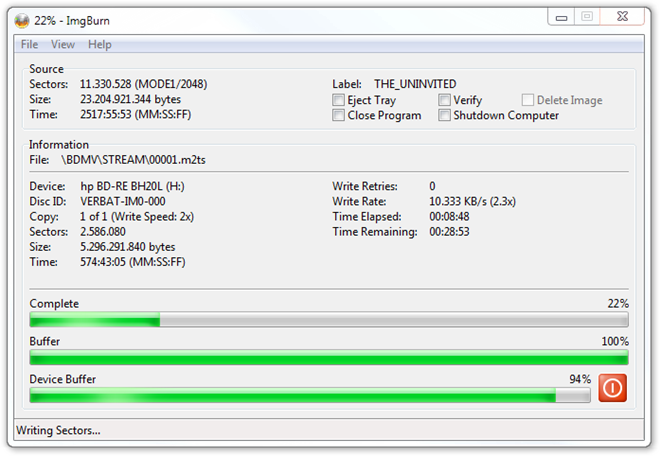
ImgBurn is free a DVD and Blu-ray recording application from the creator of DVD Decrypter. It started as a pure image burner, meaning you could use it to burn ready cd image files, like .iso or .bin to CDs and DVDs but as the years passed it has added many more options, among them the ability to burn a Blu-ray video disc. In this article we will guide you through the process of burning a Blu-ray or AVCHD disc from files you have already created using converters like BD Rebuilder, multiAVCHD, AVCHDCoder and more.
Use the link below to download ImgBurn directly from our downloads database.
Step 1
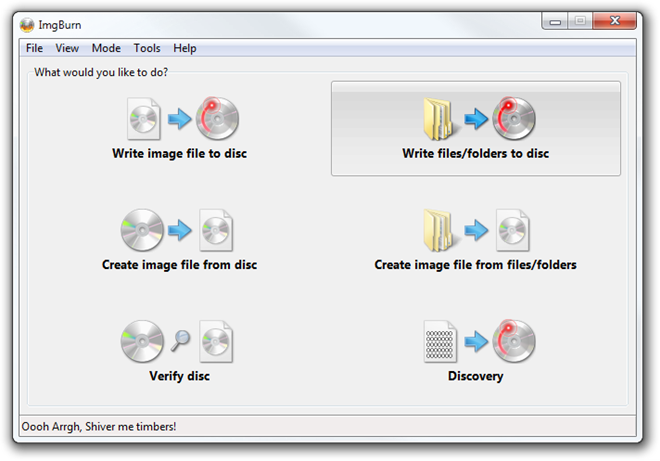
Open up ImgBurn and select the Write files/folders to disc task.
Step 2
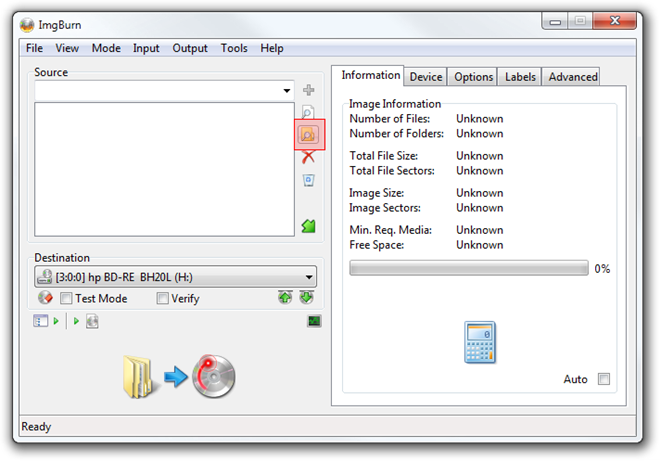
Next, click the add folder icon as shown above and add the root folder that contains all the other Blu-ray or AVCHD folders (BDMV, CERTIFICATE, DCOPY) that a standard disc has.
Step 3
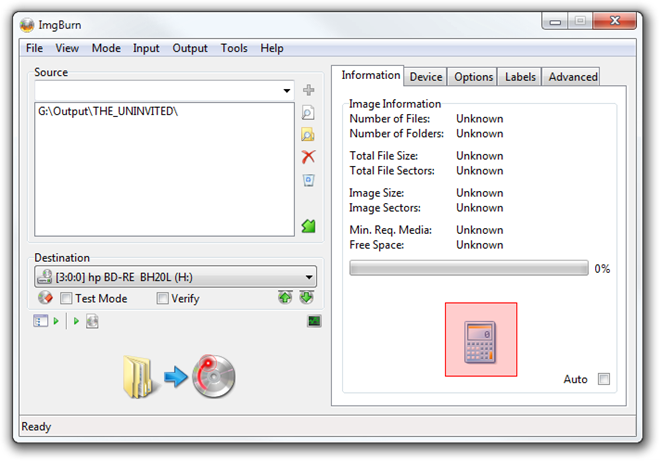
After you add the right folder it will appear in the Source area. To continue click the Calculator icon.
Step 4
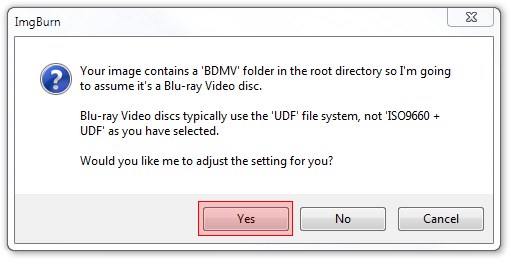
At this point, ImgBurn will detect that you are trying to burn a Blu-ray video disc and give you that notice. If it doesn't, make sure you added the correct folder at Step 2. Click Yes and move to the next step.
Step 5
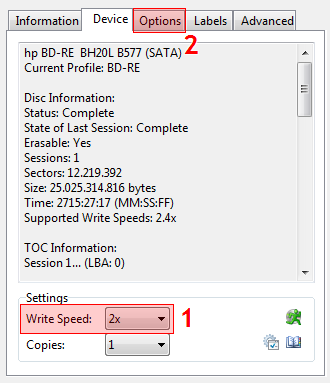
Back in the main ImgBurn window, select the Device tab. Here set the Write speed (1) at the one your blank Blu-ray states that it supports. The default option *might* try to burn faster and since I wasted one empty disc already, I am not taking any chances. To continue, click the Options (2) tab.
Step 6
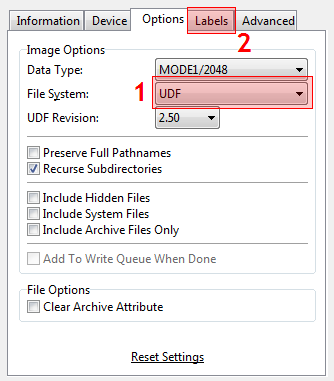
Here make sure the File System is set to UDF (1). This should already be set by ImgBurn at Step 4, we are just double checking. Next, click the Labels (2) tab.
Step 7
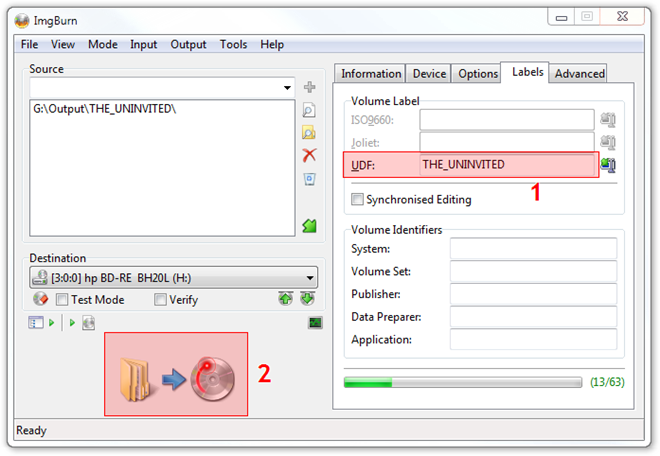
In this tab you can set the Volume Label (1) your disc will have. This only has a minor practical use but is a good idea to describe in a couple of words the content of the disc. Everything should now be ready to start burning, so click the Burn (2) button.
Step 8
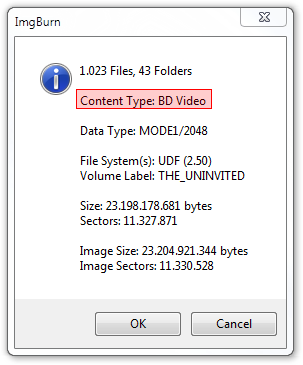
Right before you start the burning process, check the pop-up and make sure that in Content Type, ImgBurn reports BD Video and then click OK.
Step 9
That's all! A few minutes later you will have a Blu-ray video disc. This guide might seem too long for such a simple task but we double checked every step of the process in order to make sure that we burn our disc correctly and not even waste a single blank.
As always, use the comment form below or the forums for any questions or problems.