

Handbrake is a freeware video transcoder that until recently was best known and used among Mac users. The later Windows versions however are much improved, improving the GUI and fixing most nasty bugs. In this article we will guide you through the steps of creating an mkv or mp4 file using H264 codec. Handbrake now accepts most video files as input but in our example we will use a DVD disc as a source.
You can download Handbrake for free here:Step 1
As Handbrake does not support decrypting a DVD you should either use AnyDVD or rip the DVD to your hard disk first. I really suggest the later, as it will make the whole process faster and you will avoid unnecessarily stressing your DVD drive for all the hours the encoding needs to finish. To rip a DVD to your hard disk using DVDFab HD Decrypter read this guide.
Step 2
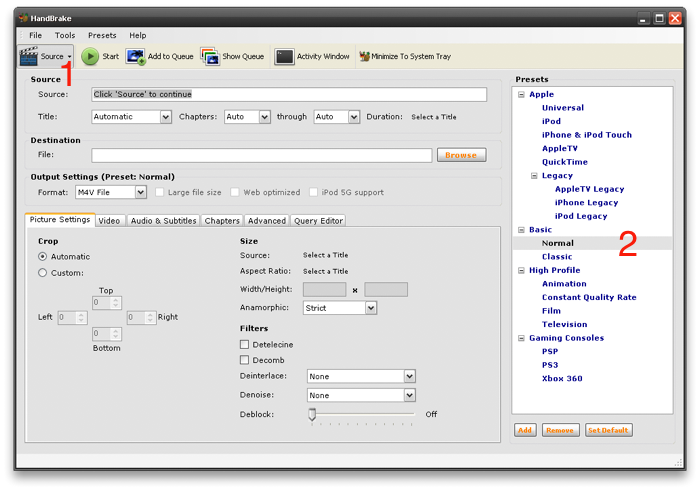
After you have ripped the DVD click on Source (1) and select DVD/VIDEO_TS folder. From the presets select Normal (2), unless you want your file to be playable in one of the special devices listed like a PS3 or an Xbox360.
Step 3
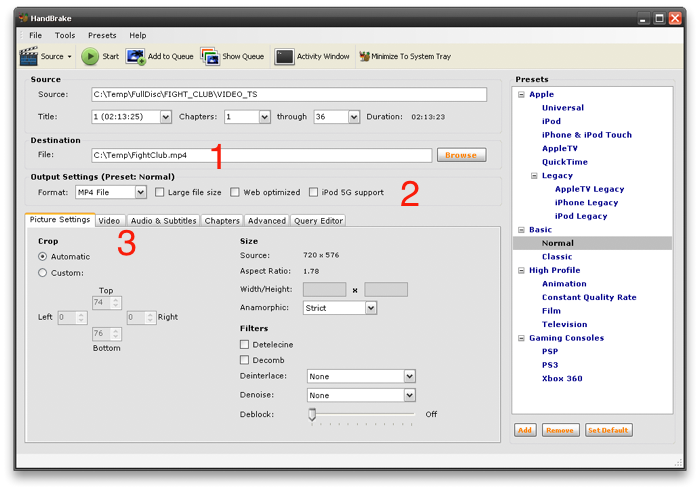
After you've loaded the video click Browse and select the output file (1). You can choose between mkv, mp4, ogm and avi in the output settings (2), then click the Video tab (3) and move to the next step.
Step 4
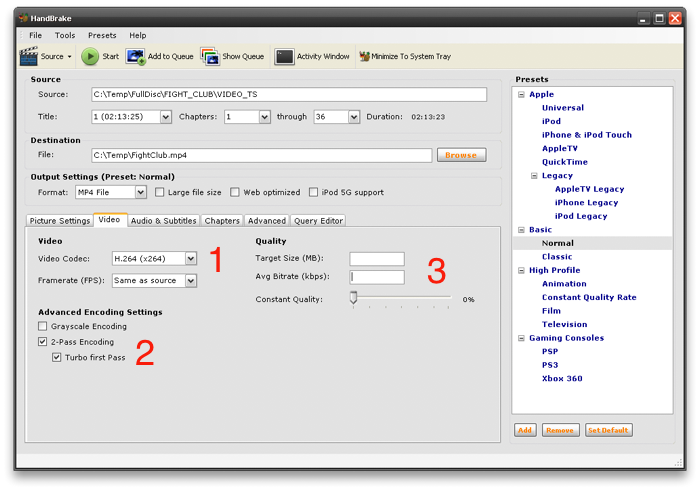
Here make sure H.264 is selected as the Video codec (1) and that 2-Pass encoding with a turbo first pass is enabled (2). Finally set the target size (3) to what better suits your storing needs, for example 700MB. Keep in mind that if you want to create big high quality files (over 2GB) it would be better to just select the Constant Quality Rate profile and set the Constant Quality to something like 65%. Move to the Audio & Subtitles tab and to the next step to continue.
Step 5
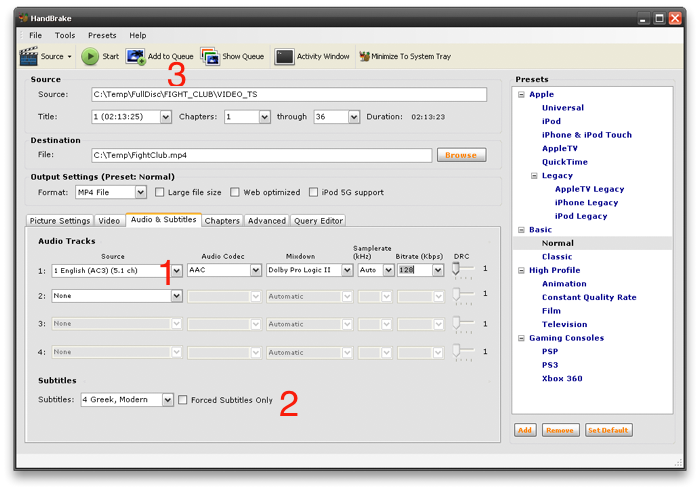
Select the audio source and codec (1). If you want to have stereo audio use the AAC codec and Dolby Pro Logic II for mixdown, otherwise to keep the original 5.1 audio of the DVD select the AC3 codec. Here you can also select if you want to include Subtitles (2) in your video. Finally click Start (3) to start the transcoding process.
Keep in mind that Handbrake will hard burn the subtitles in the video stream and not add them in a subtitle stream in the mp4 or mkv file. If you want to do that you'll have to rip the subtitles to text using this guide and then manually merge them in the file using MKV Merge or a similar tool.
Step 6
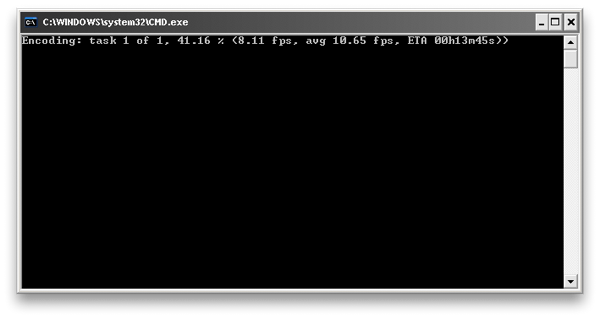
The console window that opens after you click start allows you to see the progress of the encoding process. Depending on the speed of your CPU in a few hours your video will be ready. For any extra info you may need or any problems you may come across just visit our forums and ask.
Comments
the article is older, based on 0.9.1 if I recall correctly, even though the download at the top says 0.9.5 (it is automatically updated from our downloads database).
You can read about the removal of the AVI container and XviD codec here:
https://trac.handbrake.fr/wiki/SupportFAQ#removedFeatures
Especially since the new version of Handbrake requires Net Framework 3.5--not Net Framework 2.0. There's a huge difference in the difficulty of installation between these two packages, as well as the stability of Windows Installer 3.1 (which Net Framework 3.5 requires), & it would sure be nice to know if upgrading to Handbrake 0.9.5 and Net Framework 3.5 was worth the hassle before going to all that trouble. CAN it really convert to AVI, or what...??
Auto Crop dont always crop everything nice and neat.
the program needs a proper crop feature like most video editing programs have.
A program that encodes can be used to do both and to make things confusing, is actually doing both
Encoding is the act of compressing/con verting something from one type of format to another. And so is transcoding.
The slight differences are in word implementation. Encoding is a more general term and refers to compressing an original video/audio. Transcoding is essentially RE-compressing that previously compressed source into another format.
I can find out HandBrake in many websites, but I consider it is difficult to use, little output formats and weak Stability.
iFunia is better than it, I am using it.