Pros
- Compared to our first guide, the quality using these tools is better
- You have more control as you can select exactly where to cut the part you want to upload
- Costs nothing!
- The process is much slower and it takes about 4 fores more time
- The file to upload is bigger
- You have to use multiple programs and not just an all-in-one solution
Step 1
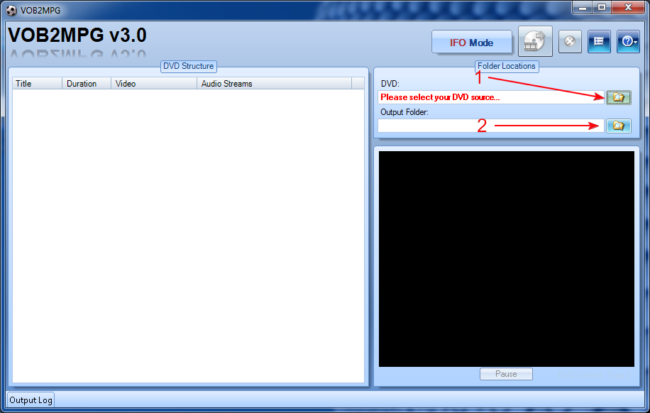 |
YouTube does not support uploading DVD VOB files. So first, we need to create an mpg file that Youtube can use from our DVD. Open up VOB2MPG. Select the folder the DVD files are stored into (1) - the program will ask for the main .ifo file - and select the Output Folder (2) that the mpg file will be stored in. |
Step 2
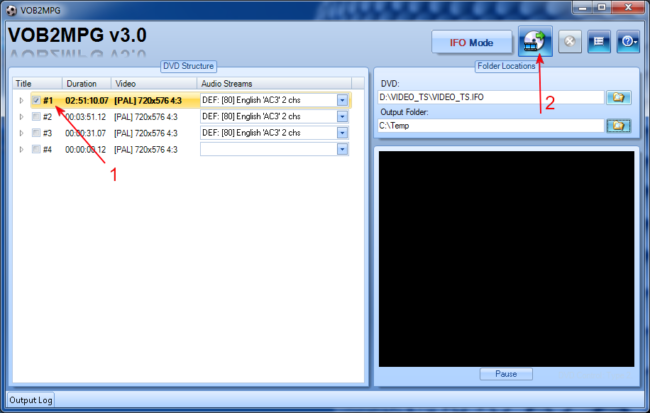 |
Afterwards, select the Title you want to rip and the Audio stream you want to use. (1) Unfortunately the free version of VOB2MPG does not also let you select which chapters to extract so we will have to rip the whole Title even though we just need a few minutes. When you're done selecting click the extract icon (2) and wait for the program to finish. Then close it and open Mpg2Cut |
Step 3
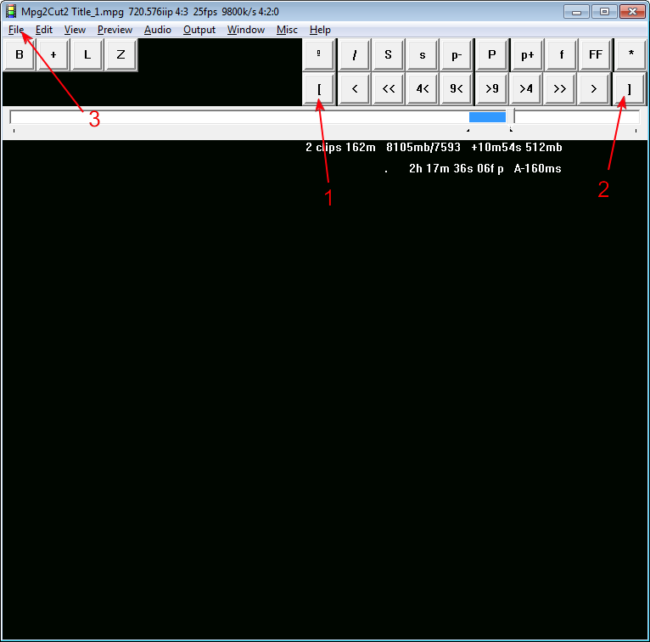 |
This interface might seem old and complicated but it will do the job. First of all load the file that we created at Step 2. Then using the bar and the little << and >> arrows, find the area you want to rip. When you do, mark the start of your selecting with button [ (1) and the ending with ] (2). Please note that the huge black area is actually a preview of your video, which for an unknown reason does not appear in this screen shot. Also make sure you don't exceed 15 minutes of video time as this is the maximum YouTube allows. The video length appears in the black area, with white letters (here 10m54s). Finally select File -> Save this Clip (3). |
This is it! Now you can upload the final .mpg file at YouTube who will process it and give you a 480p video unleashing almost full DVD quality. Please remember that you can ask any question you have in the forums and not in the comment form below.