Dr. DivX is the official DivX encoding tool by DivX Networks. As you understand,
as DivX Networks is the company that has created and updating DivX, they have
created a very good encoding tool which let's you create videos of very good
quality. Dr.DivX also has the better co-operation with DivX codec than all
other programs, as it is a tool design for this codec.

First of all you should know that
Dr.DivX does not support encoding a DVD straight from the disc, like DVDx
does, but you will have to rip the DVD to the hard disk first and create
VOB files that Dr.DivX supports. For not asking me why Dr.DivX doesn't support
encoding straight from the DVD, I tell you that for ripping a DVD you must
unlock it first and then remove the protection, something that is considered
illegal in some countries, even if you own the DVD and even if you don't
copy it! Crazy thing don't you think?
Anyway, you will not have any problem because copying a DVD to the hard disk
is a simple thing. You can use our site's DVD To VOB guide
if you don't know how to do it, you will also find the tools to do that available
for download at this site also.
After you have ripped the VOB files to your hard disk we can proceed to...

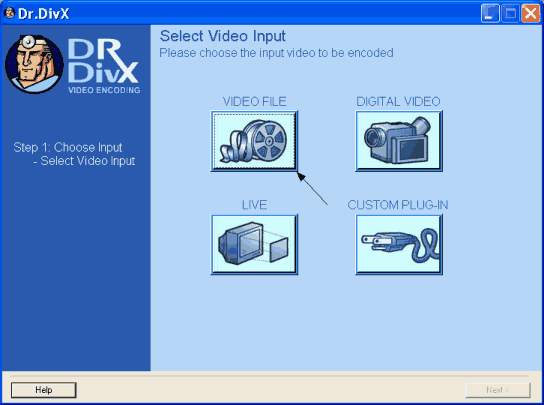 |
Open Dr.DivX and select the Video File button (the one the arrow shows). |

|
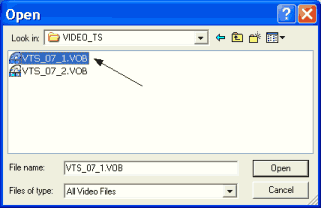
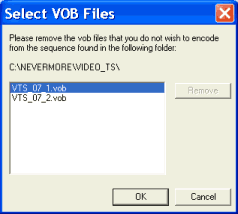
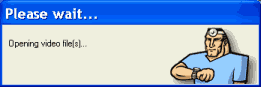
Select the first VOB file only (usually the VTS_0X_1.VOB file) and then click Open. At the next screen make sure all your files are in the list and that if there is a file you don't want to be encoded you select it and you click Remove. Then you see the screen below, so you will have to wait for a small amount of time until you can gon on. |

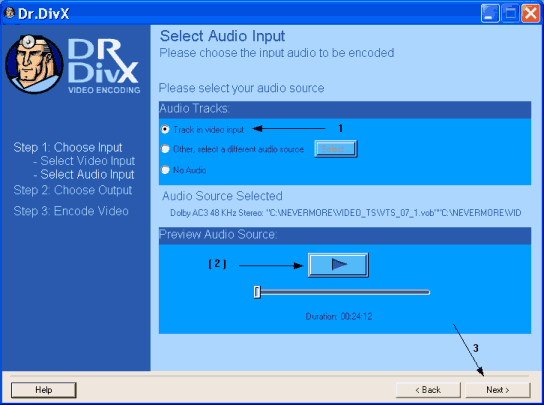 |
This is the next screen. The VOB file you created using our guide contains audio so select (1) Track in video input. You can click the play button (2) to be sure that the audio that plays is the right one. Finally click Next (3) to go to the next step. |

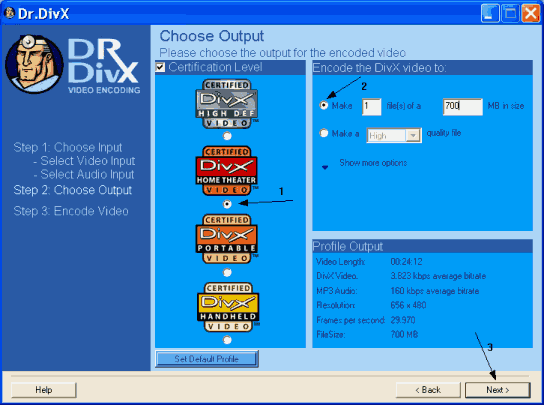 |
This is the next screen. Just select Home Theater at (1). Then (2) select 1 file of 700MB if you plan to burn the movie in 1 CD or 2 files of 700MB if you plan to burn the movie in two CDs. Of course you can choose whatever file size you want, even 100MB but then the quality is going to be very poor. If the movie is big (> 2hrs) select 2 files as the quality is going to be poor. Finally click Next (3). |

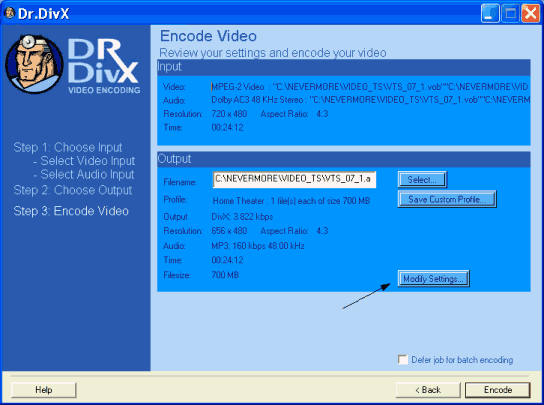 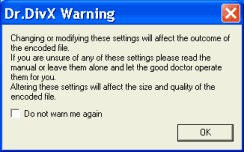 |
The just select Modify settings and ignore the warning that comes up and you can see below. Check "Do not warn me again" if want to get rid of it and click OK. |

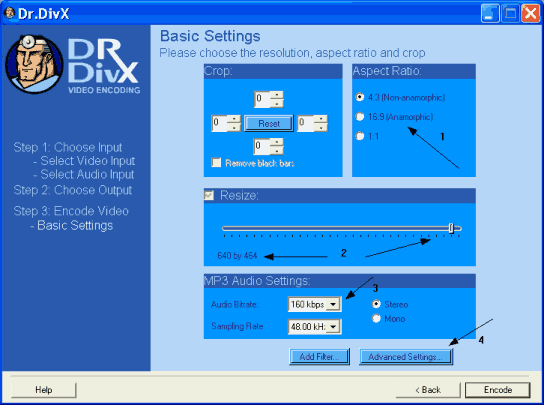 |
Here: (1) select the right Aspect Ration for your movie. Then resize the resolution (2) by moving the bar so that the first value is 640 (so it's 640xXXX - the second value varies and depends on the Aspect Ratio you select) Then (3) you can select the Audio bitrate. You can leave the value the program has left for you, or change it. Finally click Advanced Settings (4). |

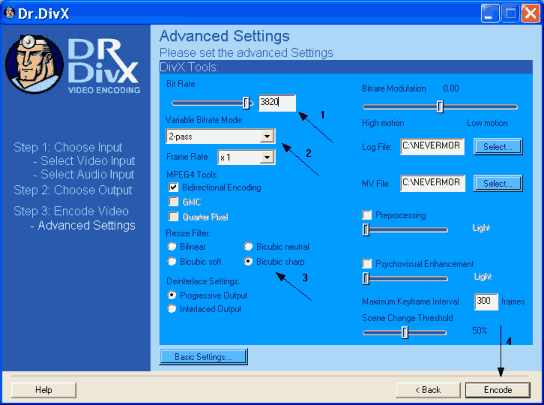 |
Here check the Bit Rate (1) and be sure that it is more than 700 (here it's a very big value, because the video I use is very small). If it's not go back to step 5 and select 2 files instead of 1. Then make sure 2-pass is selected (2) and select Bicubic sharp (3) at the Resize filter. Finally click Encode (4). |

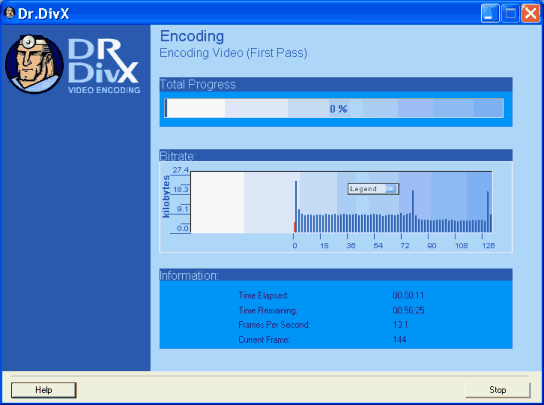 |
This is the window that will come up after all this steps. Just wait for about 4-8 hours for a full movie and the DivX video is yours! |