You can install k9copy easily as it is in the repositories of most Linux distributions. You can find packages as well as the source code in the project's web page here. Note that for k9copy to read DVDs you'll need to libdvdread package and to read encrypted DVDs libdvdcss. Check your distro's instructions on how to obtain them.

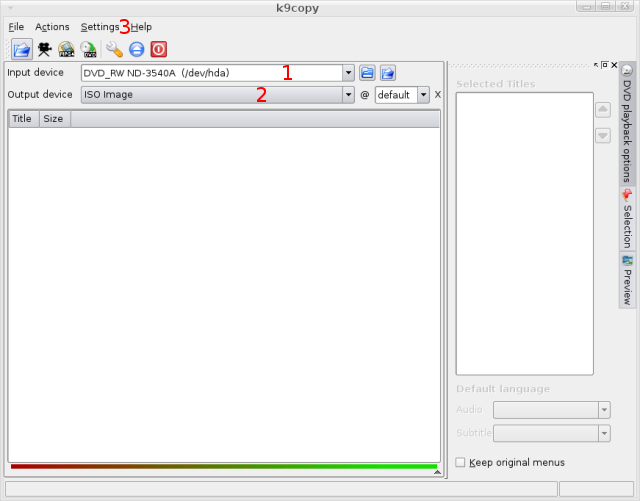 |
This is the main k9copy window. First of all you need to select the drive that has the source DVD (1). Then you can select the output device (2), where you can either burn right away or create an ISO image to burn later. Finally click Settings (3) and then k9copy Settings and move to the next step. |

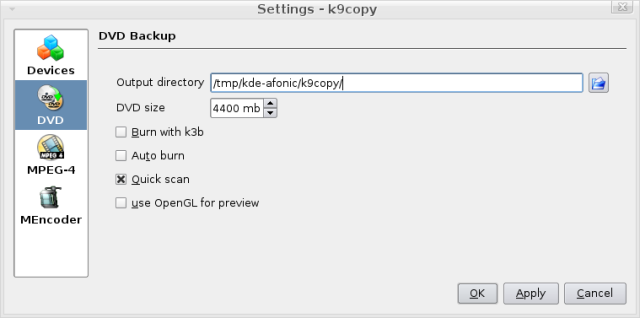 |
In the Settings window we just need to setup the DVD section as we won't be using k9copy to rip the DVD to another format, just DVD9 to DVD5 copy. First of all make sure you select an output directory that you have at least 5GB of free space. Keep in mind that after creating a DVD, k9copy will not remove the temporary files, so remember to remove them manually. DVD size should be fine at 4400MB, and you may want to select "Burn with k3b" if you have it installed and need some extra control at the burning options. Click OK and move to the next step. |

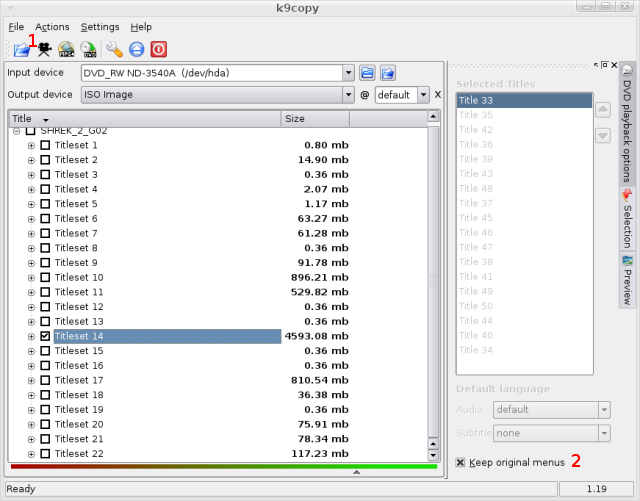 |
To load the DVD info you have to click the first button in the tool bar (1). Now you should have the DVD structure loaded. You can select if you want to include the original menus or not. (2). Then you should remove all the extras and stuff you don't need by removing the right Title sets. In this screen shot I have removed everything but the main movie (you can check which the main movie is by a look at the size column). |

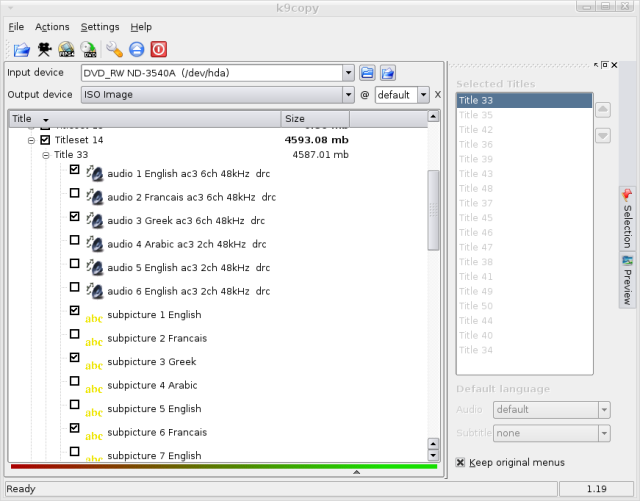 |
By clicking the small plus (+) sign next to each title set you can select which languages and subtitles you want to keep. I suggest removing all the audio you don't need as they take quite some space. |

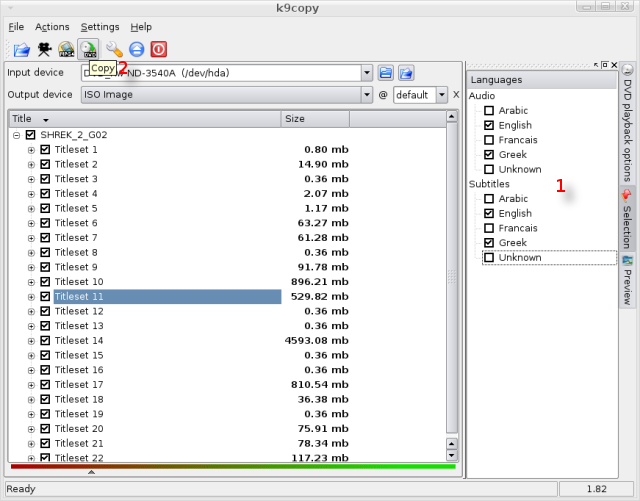 |
Another option if you want to keep all the videos including extras etc would be to leave all title sets checked and move to the Selection tab in the right (1). There you can select which languages and subtitles you want and they'll be applied globally (to all title sets). That way you can easily backup the whole DVD and yet remove stuff that you don't need improving quality. When you are done selecting what you want to include in your new DVD click the copy icon (2) to start the backup process. |

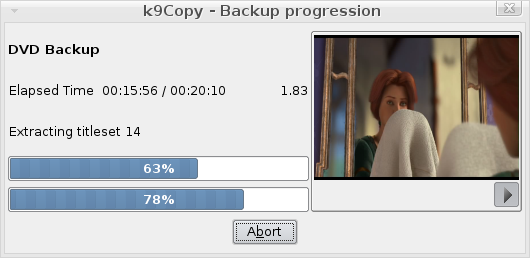 |
If everything goes smoothly you'll soon have the final DVD or ISO file. In case you need any help please use our new Linux forum to ask, just remember to add what your distro is and the version of the program you are using. |