Sometimes you want to split an AVI file in order to make it fit in a CD, but then you want to join it again so that you can watch the whole movie without stop or you want to put it in a DVD-R. Follow this guide to easily join an AVI file with VirtualDub. If you have splitted an AVI file with our AVI split guide then read the additional steps to joins these files without repeating the key-frames again. If your video fies contain VBR Mp3 sound please use VirtualDubMod which you can find, as well as the original VirtualDub here.
TO JOIN TWO VIDEO FILES THEY MUST HAVE THE SAME RESOLUTION, BITRATE, CODEC ETC

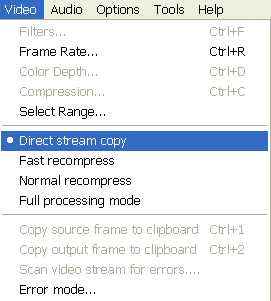 |
Open VirtualDub. Then select Video -> Direct stream copy |

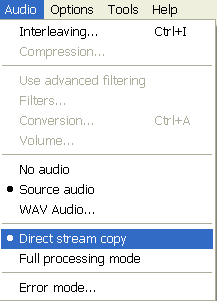 |
Next go to Audio and select Source audio and Direct stream copy. |

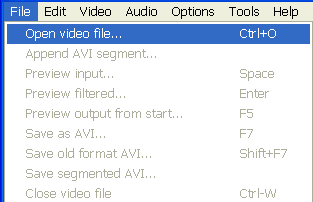 |
Then select File -> Open video file. |

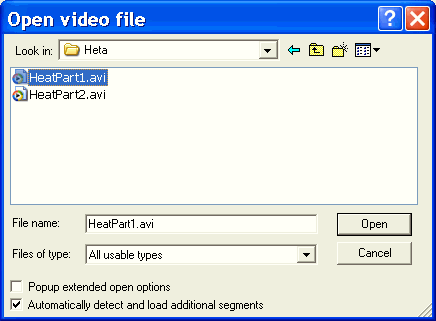 |
Here select the first one of the video files you want to join and select Open. |

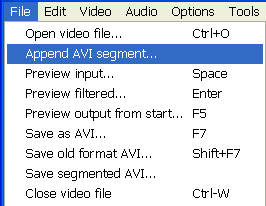 |
Now select File -> Append AVI segment. You can do this as many times to add as many AVI files you want. |

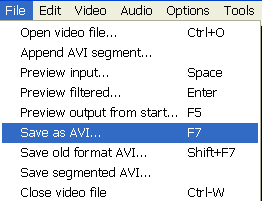 |
Finally select File -> Save as AVI and save the whole video. |

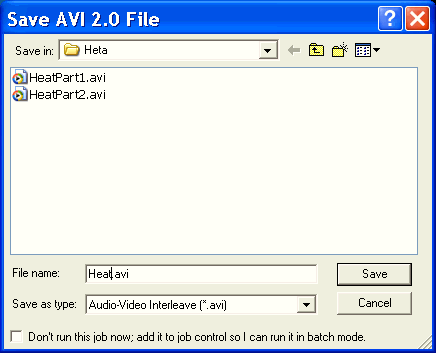 |
Name it anyway you want and click Save. |

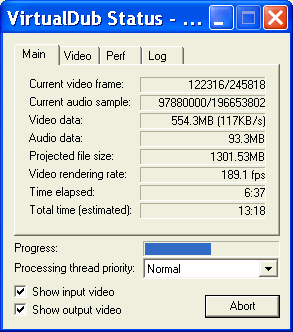 |
This is the process window. Wait about 15-30 minutes for it to finish and there you go! |
EXTRA STEPS
If you have splitted the AVI file with our AVI Split guide then you have to do some more steps. That's because we added a key-frame (about 3-4 sec) of the first part to the second part to be sure that we are not going to lose a second. So:
Follow the above guide until Step 4 then do the steps below and continue the guide above from Step 5 to the end.
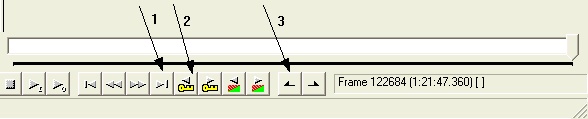 |
Then click
button (1) than button (2) and then button (3).
|
 |
After that
click button (1), then button (2) and then press DEL at your keyboard
or go Edit -> Delete selection.
|