How to convert all video formats to DVD using dvdSanta PDF Print E-mail

I had tried dvdSanta when it was still in version 2 and I must say that I was not excited at all. That changed when I gave v3 of dvdSanta a try! dvdSanta takes care of your converting needs, as you can now easily convert your DivX / XviD and any other formats to DVD using only one application. Everything is very simple as dvdSanta encodes the files directly to VOB files and then authors the DVD, so all you have to do then is to burn (again with dvdSanta!). That saves you the hassle and the time you need to use an encoding application, then an authoring program to create the DVD files and then another program to burn, as dvdSanta takes care all these at once!
The MPEG2 encoder is pretty good, as the quality was similar to the TMPGEnc one when running in 1-pass mode. But the speed was better as it took me only 1 and a half hour to have the DVD ready, when in other case you need 2-3 hours to encode then almost another hour to author and then burn. The encoder is very fast, maybe not as fast as WinAVI's one, but this one offers better quality. Also the burning engine worked OK.
Besides all that dvdSanta has more features we will explore in future guide like, creating DVDs straight from your DV camera and creating a slide show DVD from your pictures.
You can download a trial version of dvdSanta here. If you wish to buy a serial you can do it here. So, grab the trial, install and let's start the guide!


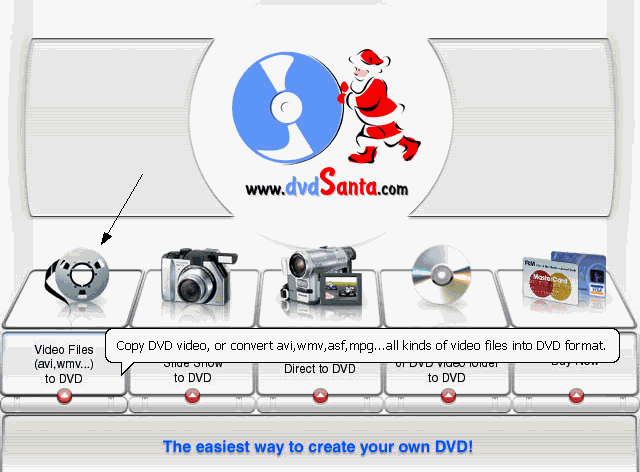
This is the first screen of dvdSanta. What you need to do now is select the Video Files icon that the arrow shows.


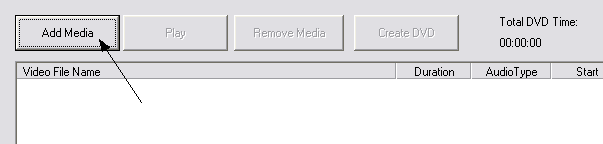
A new window comes up. First of all you need to add the media you want to convert. Note that if you put more than one, dvdSanta will encode them to one DVD, and put each of them in a new track. Now click Add Media to select the video files.


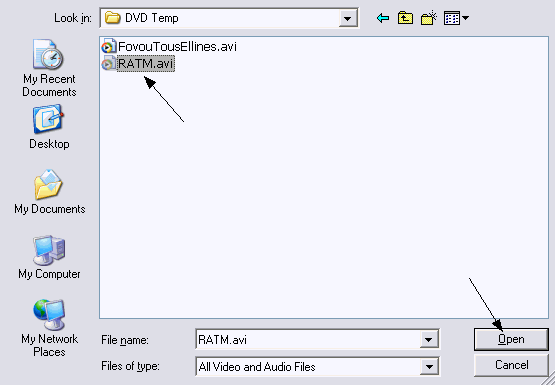
Pretty easy this step, just select the video file(s) you want to convert and click Open.


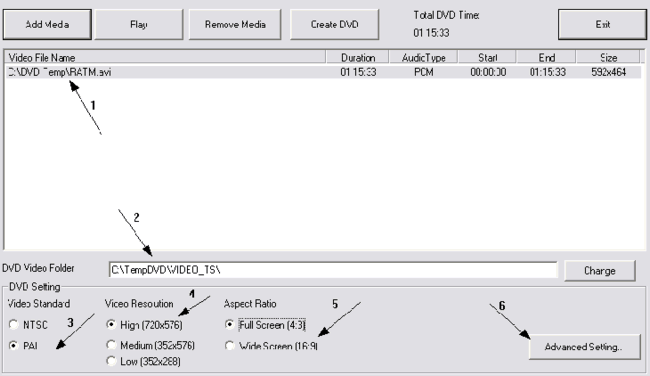
OK now we are in the main window. You need to make some simple settings here. Have a look in the video file (1) and make sure everything is OK. Then select the folder you will put the files into (2). Make sure you have at least 5GB free in the disc you will select and that the folder you select exists. Then everything is pretty simple. Select the format you want (3) between NTSC and PAL, then the resolution (4) (always use 720x576 unless the source file is very low resolution or quality. If this is the case then use Low or Medium). Next thing you need to select is Aspect Ratio (5). Select the right one depending on your source. Now you should be ready to start, but let's check the Advanced Setting (6) first to make sure everything is OK.


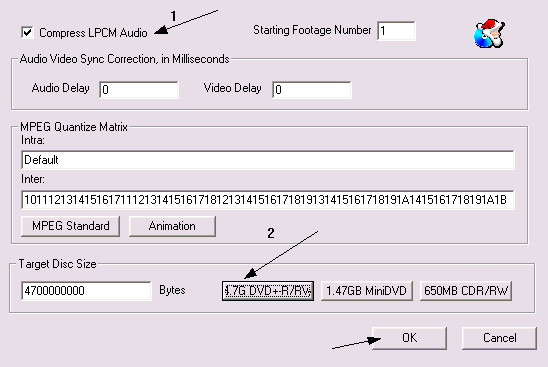
The default settings should be OK here, but make sure that LPCM audio is selected (1) and that as source you have set the DVD-R by clicking on the right button (2). That's all here, click OK.


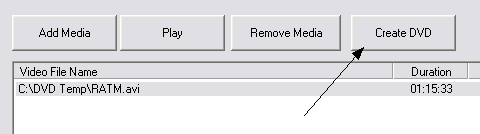
You should be back in the first screen. Click Create DVD to start the convertion proccess.


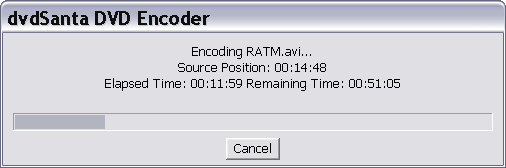
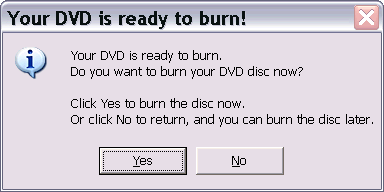
dvdSanta will now convert the video files in DVD. When it's finished it will ask you to burn the disc. If you click No, you can burn with your favourite burning software. If you click Yes the burning tool will open, so see below for details!


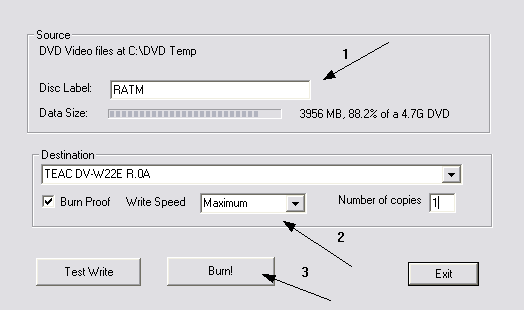
This is the burning tool's main screen. Not much things to do here. Just select the label you want your disc to have (1), then select the burner, the burning speed and the number of copies you want to make (2), and click Burn! (3).


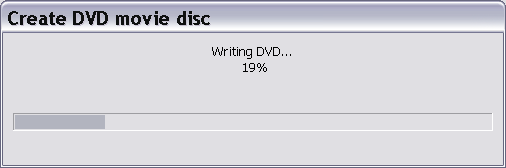
That's it! dvdSanta begins burning and you will soon have your brand new DVD! As you saw, dvdSanta is fast, easy and... cheap!
Click here to buy a serial. For those that like to try first, the link to the trial version is here. Enjoy!
Comments (18)Add Comment
Awesome
written by 10bluemae49, May 12, 2005
Thanks for the info and for providing the downloads. This site is awesome..
can get through
written by pdtboy, May 30, 2006
i followed all instructions however the dvd is recorded but does not play on my dvd player. can anyone help me>>
...
written by jrcdude, August 21, 2006
Your dvd player might not support a certain format smilies/tongue.gif
why
written by Glynn, March 02, 2007
E
after downloading the trail version I get no picture after converting just a large DVD.santa.com is this normal with the trail version
...
written by Sas, April 29, 2007
Is dvdsanta capable of converting dvd-ram discs to "normal" dvd /-r?
crashing
written by littlelewis, May 21, 2007
for an unknown reason , when i try to convert an .avi file to dvd , my dvdsanta just crash. anyone know the issue ?
;-)
written by challenging, June 07, 2007
have try'd cucusoft and is not as good as dvd santa , sometimes jumbles up the audio files . dvd santa is far the easiest and works for about 95% of dvd's . but found with both softwares that if they start crashing uninstall them do a spyware scan n stuff then reinstall !! dont no if the spyware scan helps but works for me !!!
confuse
written by jonifanta, June 10, 2007
Would anyone know, after i cliked the burn button i would get this message "cannot retrieve information or disc is not blank".
I have followed all thesteps and make sure the cd i put in are blank. Tried about 7 times still give me the same message.
Can anyone help???
Thanks
DVD Menus
written by Aelizabeth, June 11, 2007
Is it possible to create menus with DVD Santa 3.43 retail version?
Thanks
create a menu
written by f.uk.you, June 17, 2007
How do i create a dvd menu using dvdsanta. Is it possible to convert avi files using dvdsanta then create the menu and burn the files by using imtoo avi to dvd.
ipod
written by caveman1011, September 02, 2007
can i convert ipod videos to dvds with this software
...
written by Josh7676, September 30, 2007
When i burn a movie it only burns the movie. I would like to have the main menu options on the dvd. How do i do it?
problem
written by JJ, December 14, 2007
Dvdsanta has been great so far but I tried to convert this particular file and when I try to Add Media it says:
unable to open the video file of"name of file"dvdrip.mpg
any ideas why?
Help pleease DVD MENU!!!!!!!!!!!!!!!!!!!!!!!!!!!!!!!!!!!!!!!!!!!!!!!!!!! !!!!!!!!!!!!!!!!!!!!!!!!!!!!!!!!!!!
written by DVD DVD DVD MENU MENU MENU, January 02, 2008
hi i want to get this coz its reccomended quite a bit, but i want to no if you can create DVD MENUS on this or if u can create them off another program and add them to dvdsanta PLZ HELP!!!!!!!!!!!!!!!!!!!!!!!!! reply to me lol
output size
written by ray33, January 09, 2008
i converted a 16mb divx file and the output was a 347mb file. now imagine when i want to burn a 1gb divx file movie. is it going to fit on a dvd? and how long would that take. i used the trial version. it worked but the size is what has me worried.
Mr
written by tedz, April 24, 2008
dvd santa creates dvd to burn but burn button not highlighted with no DVD -R/RW DRIVE FOUND in destination box, please help.
Vts encoder takes a long time.
written by robcap, April 06, 2009
smilies/sad.gif , I hope they can enhance the vts encoder. A video vts.vob file of 4 gig, may take several hours to encode. For those of you working on making a movie dvd, i suggest you start when u have no more task to do, preferably in the evening, just before you sleep. When you wake up in the morning, perhaps you'll be ready to burn the files....good luck!
Error!!! Please insert blank disk?
written by don's, July 19, 2009
Encoding was complete for these trial version but had problem reading blank dvd-rw with I start to burn.

Write comment
smaller | bigger

security code
Write the displayed characters


busy
 
DVD-Guides.com on Facebook

Who is online

We have 289 guests and 0 members online
No users online.