

In this guide you will see how to author a DVD with TMPGEnc DVD Author. Actually we are going to use a DVD MPEG2 file as a source. If you don't know how to convert your video to this format see the guide here. This guide will work the same way for other DVD-compatible video files. First of all get TMPEGEnc DVD Author which is a very good authoring program, but it's not freeware. Don't worry because you can try it for a month. You can download it from here. After introduction let's start with the guide.

 |
|
Start the
program. At the toolbar at the top of it's window select Source Setup.
|

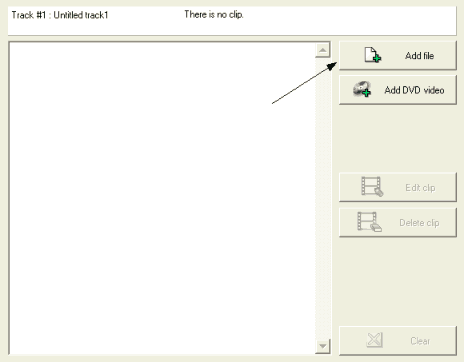 |
Here click Add file and add the DVD mpg files you have created before. The Add DVD Video option can be used if you want to add a full VIDEO_TS folder, with DVD files ready to use. Normally you'll need add file. Of course you can add more than 1 files. |

 |
When the
file is loaded a new window will come up. There you will see this button
at the top. Click Chapter cut edit.
|

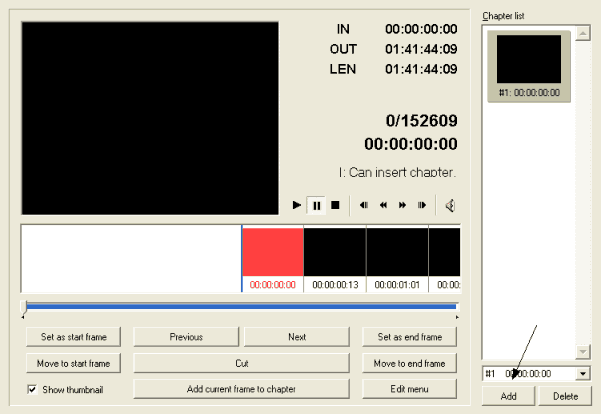 |
Here you can add chapters to your movie so that you can easily watch the part you want. Click Add. |

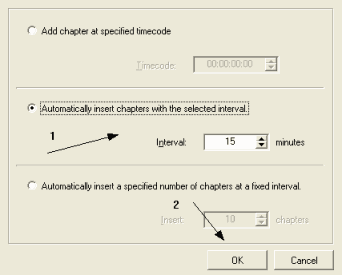 |
Here you can add some chapters. (1) Select Automatically insert chapters with the selected interval and below add the time in minutes where the program will create chapters. You can put whatever you want. In this situation it will add a chapter at 15:00 then at 30:00, 45:00 etc. Then click OK (2). |

 |
|
After finishing
with chapters you can select Create Menu.
|

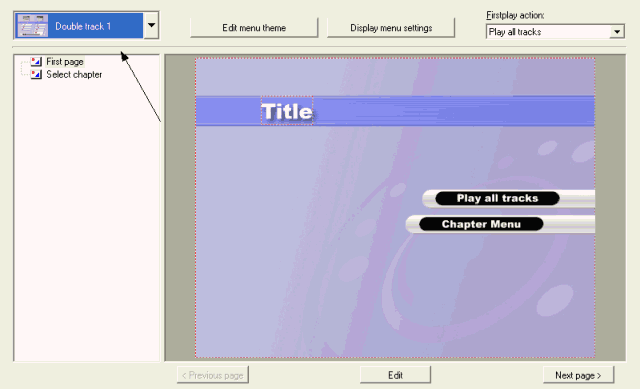 |
| Here you can edit your menu. You can select a ready one from the list or try to make your own one. You can also disable menu. I am not going to get into any details, you can search this one your own for some advanced settings! |

 |
When you're
done with the menu click Output at the top buttons.
|

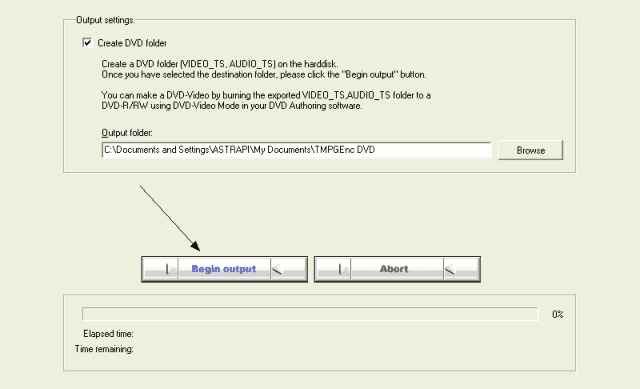 |
| Here just select the folder you want to put the files in (I suggest it's an empty one) and click Begin output. Your DVD files are ready. Now you can burn them with TMPEGEnc DVD Author (continue reading) or any other program you want. Nero, CopyToDVD and ImgTool guides available. |

 |
After you burn the program asks you burn the disc. If you clicked yes then skip this step. For the others, this option at the main menu of a program allow you to burn a DVD-R. |

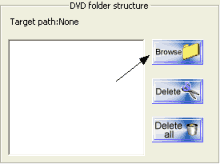 |
First of all click Browse and select the folder TMPEGEnc DVD Author has created and includes your DVD files (not the VIDEO_TS folder, the one before that includes both VIDEO_TS and AUDIO_TS). |

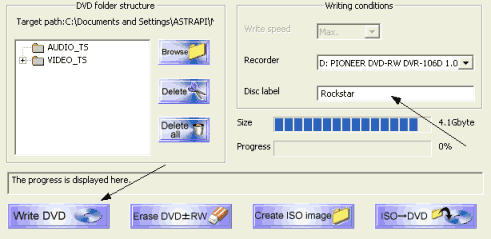 |
Finally set a disc label for your DVD and click on Write DVD. You are ready! |
Comments
in this page, only the mpeg video file created in the previous step is used. What about the .mp2 audio file (created at 48khz):-? how is it supposed to be used?